
Automating with hooks
An event hook runs an agent turn when a lifecycle event
fires. This guide is the practical companion to that concept page: it walks
through creating an onArchive hook — “when I archive a chat, tidy up after
it” — granting it exactly the tools it needs, enabling it, and reading the run
it produces. By the end you’ll also know how to let a keeper agent manage its own
hooks, and how to steer the built-in curator.
Event hooks are managed as triggers, so everything below happens on a project’s Triggers tab. (Triggers also cover time-driven schedules; this guide is about the event type.)
Open the Triggers tab
Section titled “Open the Triggers tab”Open any project and click its Triggers tab (/projects/<slug>/triggers).
Each project has its own trigger list — a hook is per-project, versioned in that
project’s project.yaml. The list starts empty; each row will show a trigger’s
type, its firing condition, its capability, and whether it’s enabled.
Create an onArchive hook
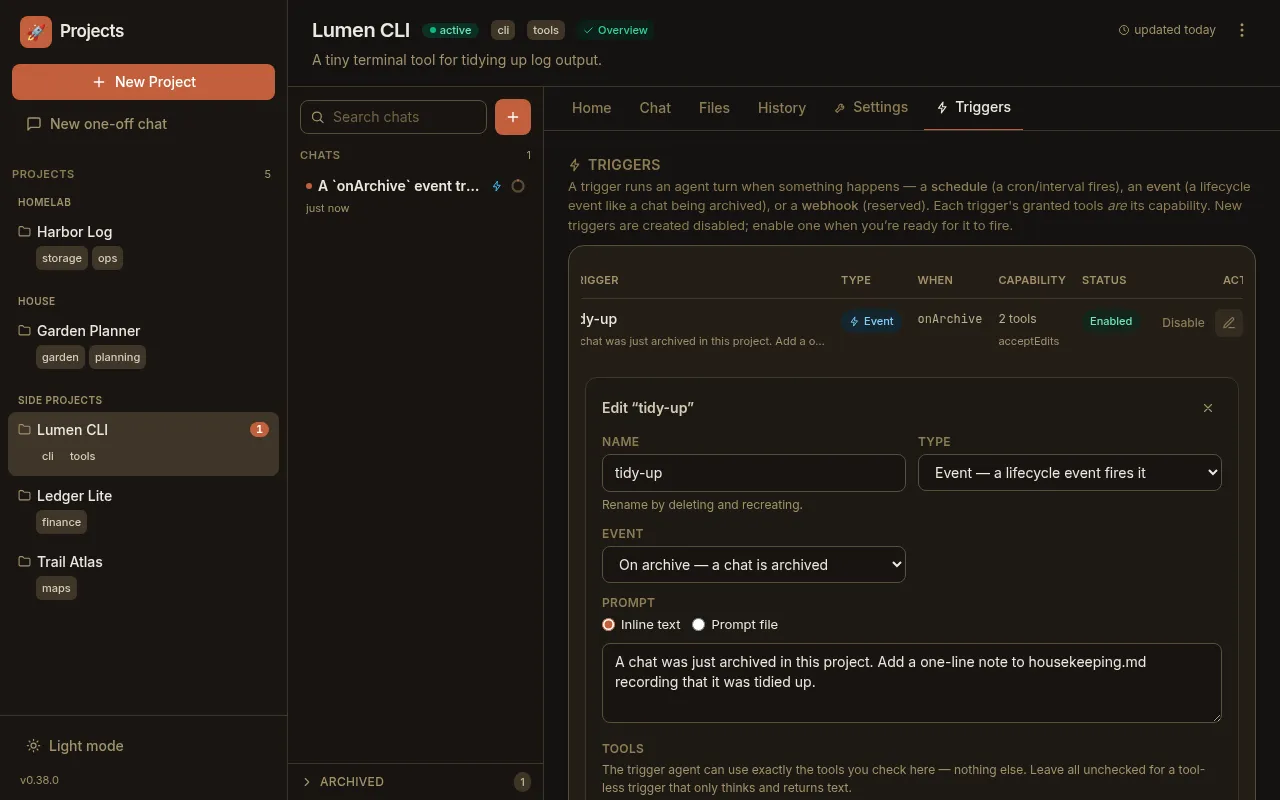
Section titled “Create an onArchive hook”Click Add trigger to open the editor, then:
- Name it — e.g.
tidy-up. Letters, numbers,.,_,-(renaming means deleting and recreating, so the name is stable). - Set Type to Event — a lifecycle event fires it.
- Set Event to On archive — a chat is archived (
onArchive). (The dropdown also offers After turn, but that one customizes the post-turn sweeper rather than a general hook — leave it on On archive here.) - Write a Prompt — what the hook should do when it fires. Choose Inline
text for a short instruction, or Prompt file to keep it in a git-tracked
.mdfile under.paddock/triggers/that Paddock reads fresh on each fire (handy for a longer runbook the keeper can edit over time).
Grant it a capability — the tool picker
Section titled “Grant it a capability — the tool picker”A hook’s granted tools are its whole capability, so the editor’s Tools section is the most important part. Check exactly the tools the hook needs — nothing else is available to it:
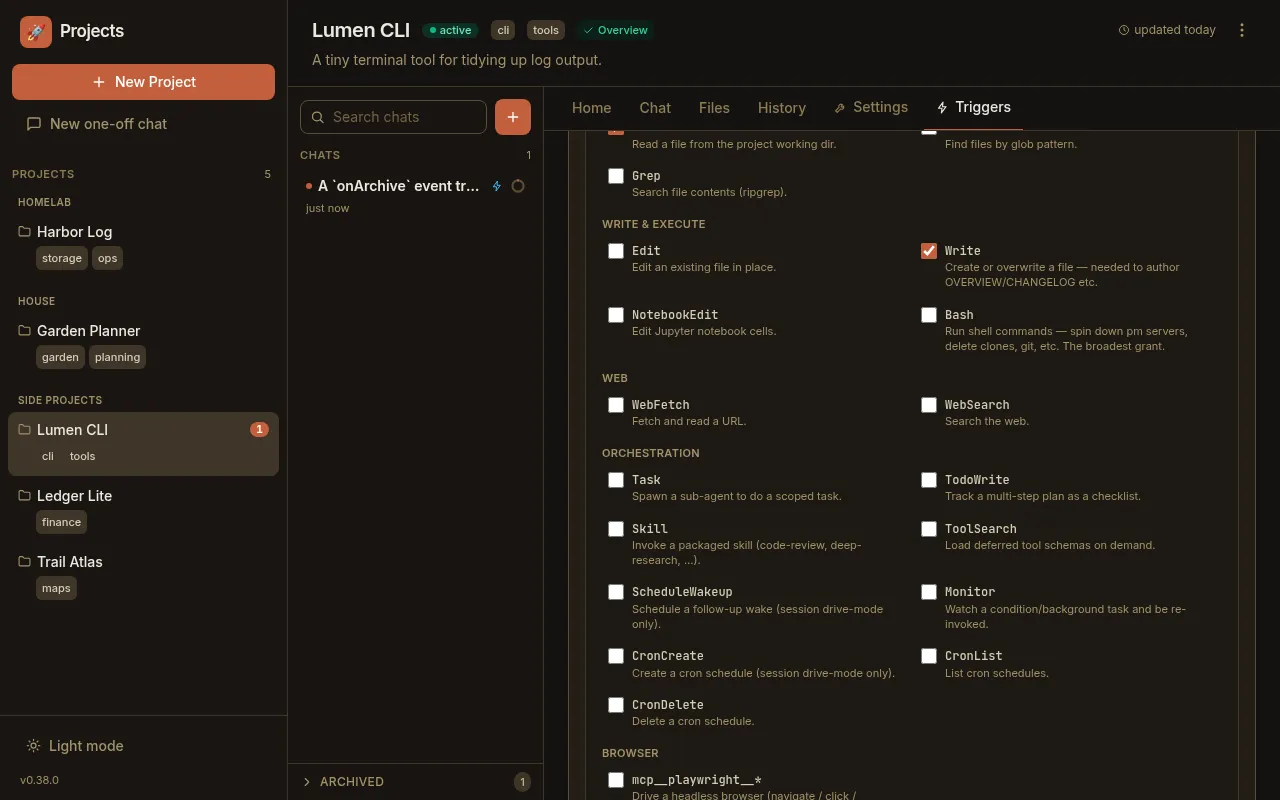
- Leave everything unchecked for a tool-less hook that only reads its prompt and returns text.
- Check
Writeto let it author a file (a log, anOVERVIEW.md). - Check
Bashonly when the hook genuinely needs a shell — it lets the hook run arbitrary commands in the project working directory, so the editor flags it with a warning. That’s the grant a real “spin down the dev server and delete the clone” cleanup hook needs.
The other capability knobs sit below the picker: a permission mode, an optional model override, a max turns bound (default 30), a max spawn depth, and whether the hook accretes into one long-lived chat or starts a fresh chat each fire.
Enable it
Section titled “Enable it”New triggers are created disabled so nothing fires the instant you save. Tick Enabled (fires on its trigger) when you’re ready — or save it disabled and flip it on later with the row’s Enable button. Enabling and disabling is just that toggle; there’s no separate “arm” step, and disabling a hook keeps its definition (and its past runs) intact.
Click Create trigger and the hook is live. It now shows in the list as an
Event trigger firing on onArchive, with a capability summary and an
Enabled status.
Watch it fire
Section titled “Watch it fire”Trigger it: archive a chat in this project (the archive action in the chat
list, or a keeper’s own archive_chat). The archive completes immediately, and
just after it commits your hook fires as its own agent turn. A new chat appears in
the sidebar with a ⚡ lightning badge, and opening it floats a read-only
capability banner at the top — what fired it, and the exact tools it was
granted:
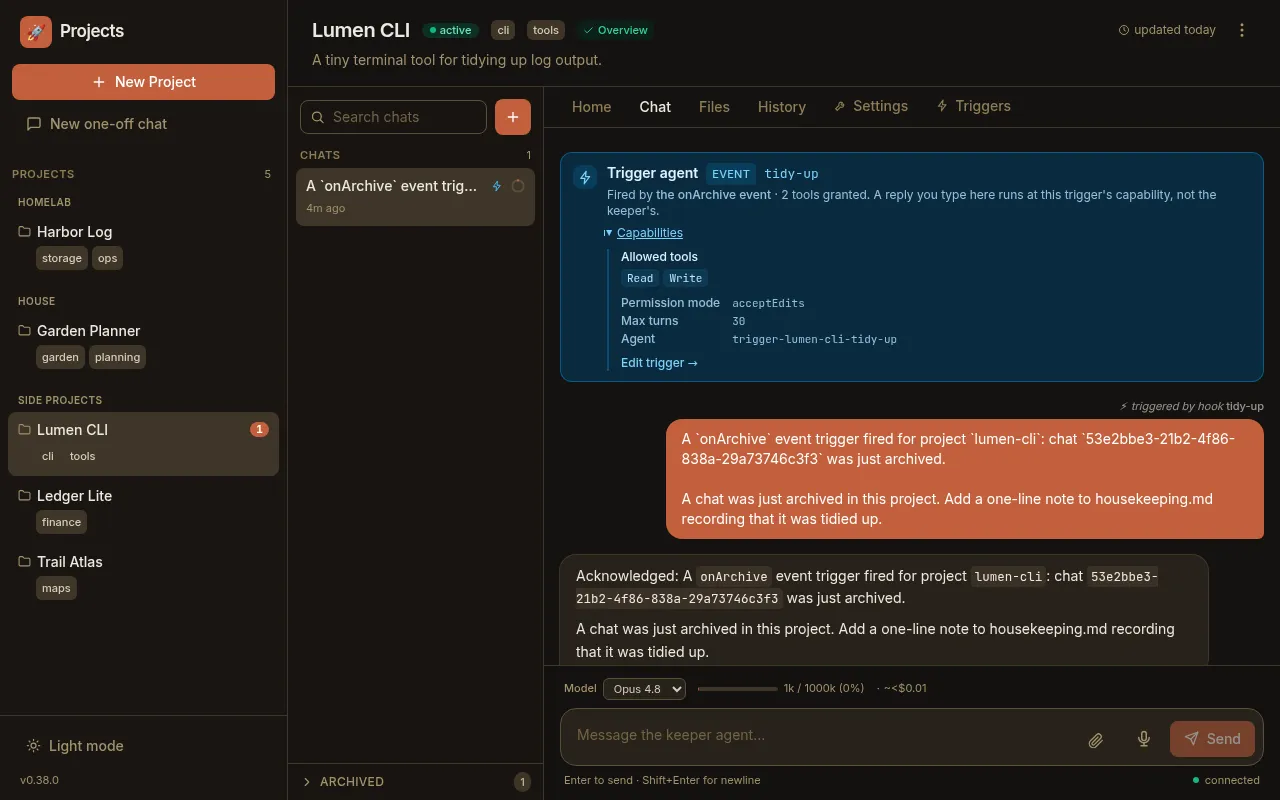
The banner is projected from the same agent config the runtime enforces, so it’s truthful by construction — it can’t show a capability the hook doesn’t have. The hook never blocks or fails the archive: even if the hook errors, the chat you archived is still archived.
Manage hooks from an agent (the manager pattern)
Section titled “Manage hooks from an agent (the manager pattern)”You don’t have to use the tab. A keeper agent can declare, edit, and delete its own hooks through the hook-management MCP tools — the agent twin of the Triggers tab:
list_triggers— enumerate the project’s triggers (hooks and schedules).set_trigger— create or update one. It’s create-or-update by name, so enabling/disabling is justset_triggerwithenabledflipped; a brand-new hook defaults to disabled. For an event hook you passtype: "event"andevent: "onArchive", aprompt(orprompt_file), and the capability (tools,permission_mode,model,max_turns).remove_trigger— delete one.
This is what makes “set yourself up to tidy the project whenever I archive a chat” a thing you can ask a keeper to do directly.
Steer the built-in curator
Section titled “Steer the built-in curator”One related knob isn’t a hook you create but a file you drop in. The
sweeper — the tool-less agent that curates OVERVIEW.md
and CHANGELOG.md after your turns — reads an optional, git-tracked
.paddock/hooks/sweep.md in the project. When present and non-blank, its contents
are appended to the sweeper’s prompt as extra project-specific curator
instructions (e.g. “always keep a Glossary section”, “note API changes
prominently”). When it’s absent, curation is exactly unchanged, and a missing or
unreadable file never breaks a sweep. It only shapes how the curator writes;
it grants no new capability.
Next steps
Section titled “Next steps”- Event hooks — the concept: why the tools are the capability, and the fire-and-forget, after-commit guarantee.
- The sweeper — the curator you steer with
.paddock/hooks/sweep.md. - Hooks reference — the
project.yamlschema and the exact hook-management MCP arguments. - Environment variables — the
PADDOCK_HOOKS_MCPopt-in and other box defaults.